

All about AFAS
Connect AFAS to APIcenter
Step by step: import the connector set, create an App connector and user token in AFAS, and connect AFAS to APIcenter.
Updated November 9, 2026
To connect AFAS, you first prepare your AFAS environment. Then you enter three details in APIcenter: the access token, the environment number and the environment type. Take your time for the preparation in AFAS: the connectors need care, and some steps need an AFAS administrator.
Before you start
- You use AFAS Online. On-premise versions are not supported.
- You have AFAS Profit with the Order management (Orderbeheer) and Financial (Financieel) modules.
- You can manage connectors and the App connector in AFAS, or someone who can is helping you.
Step 1: Import the connector set
APIcenter reads data from AFAS through GetConnectors and writes data through UpdateConnectors. The GetConnectors APIcenter needs are in the APIcenter connector set.
- Download the APIcenter connector set.
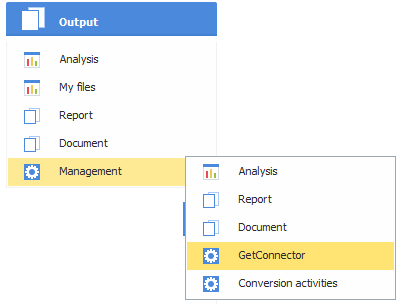
- In AFAS Profit, go to Algemeen (General) > Uitvoer (Output) > Beheer (Management) > GetConnector.
- Choose Importeren (Import) and select all connector files from the connector set.
After the import, you see the APIcenter connectors in the list.
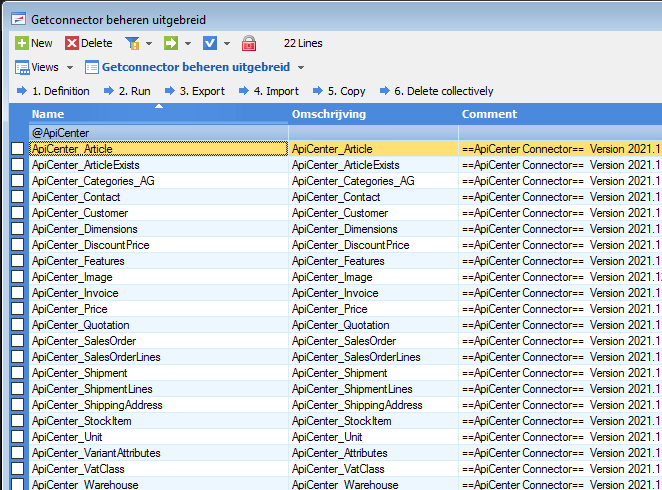
The connectors are not plug-and-play. Some of them contain placeholder free fields, for example for product visibility, SEO, dimensions, variants and filters. Replace these with the free fields from your own AFAS environment, or remove them if you do not use that function. The connectors are sensitive to spelling and capitals, so copy field names exactly. The articles of the flows explain which fields matter.
Step 2: Set up the App connector
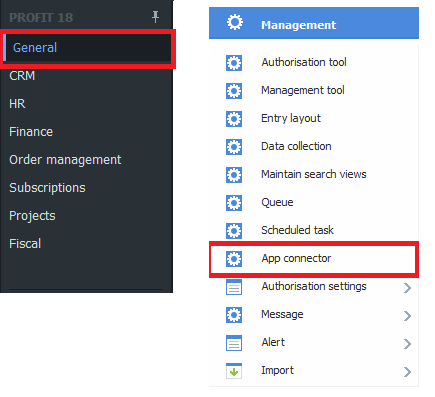
- In AFAS Profit, go to Algemeen (General) > Beheer (Management) and select App connector.
- Open the existing APIcenter App connector, or create a new one if it does not exist yet.
- Under GetConnector, click Nieuw (New), select all APIcenter connectors and click Voltooien (Finish).
- Under UpdateConnector, click Nieuw (New) and add: Contact, Organisatie, Persoon, Verkooprelatie organisatie, Verkooprelatie persoon and Verkooporder.
- Do you want to send quotations to AFAS? Then also add the UpdateConnector FbSalesQuotation.
Step 3: Create the user token
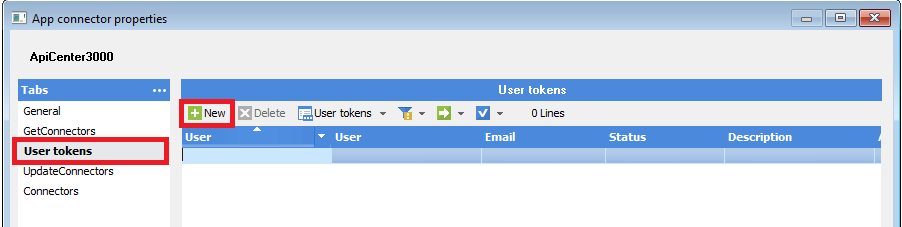
- In the App connector, open the user token section (gebruikerstoken) and create a new token.
- Select a user with the right permissions. This user must be able to read and send data through the connectors, but does not need access to Profit itself. Permissions in AFAS are very specific: ask your AFAS advisor if you are not sure.
- Copy the token straight away. You cannot retrieve it later.
AFAS shows the token with XML tags around it, such as <token>, <version> and <data>. Copy only the long code between <data> and </data>, without the tags.
Step 4: Find the environment number and type
- Environment number: the customer number of your AFAS software. You usually see it when you open AFAS Profit.
- Environment type: the type of environment you connect to:
restfor productionresttestfor testrestacceptfor accept
Choose the type of the environment in which you created the token.
Step 5: Enter the details in APIcenter
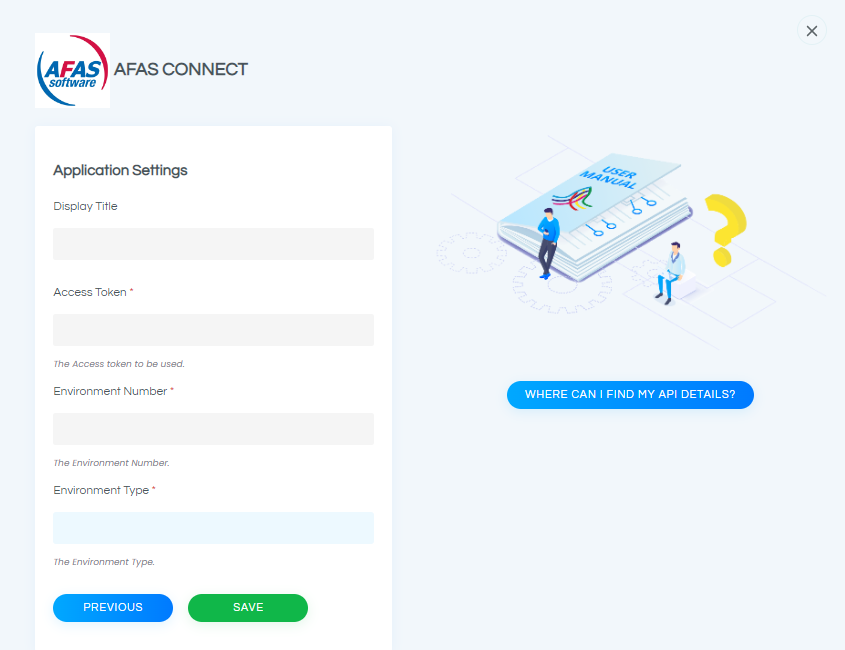
- In APIcenter, go to Applications and choose AFAS under Connect a new application. You can also do this in step 2 of the wizard, Connect your apps.
- Fill in the fields:
- Display title: a name you choose. This helps when you have several AFAS applications.
- Access Token: the data part of the token from step 3.
- Environment Number: your environment number.
- Environment Type:
rest,resttestorrestaccept.
- Click Test Connection. APIcenter saves the details and tests the connection.
Common problems
- The token contains XML tags. Enter only the code between
<data>and</data>, nothing else. - Wrong environment type. The environment type must match the environment of the token. If the test fails, check the environment type and the environment number first.
- Missing connector permissions. The connection works, but a flow reports that it cannot read or write data. Check that the connector is added to the App connector and that the user of the token has the right permissions.
- Connectors not adjusted. Placeholder free fields that do not exist in your environment cause errors. Replace or remove them (step 1).
- AFAS on-premise. Only AFAS Online is supported.
Next steps
Create an integration with AFAS and check the settings. For customers and orders, AFAS needs at least an administration, a debtor ledger account (verzamelrekening) and payment terms. See Send sales orders to AFAS and AFAS connection and integration settings.